



Field Visit


Page Topics:
Field Visit Workflow
In Alabama, every parcel in a neighborhood must be inspected periodically once in 4 years. There are two ways parcels are added to Maintenance. One way is based on the cycle, if it is a 4 years cycle Maintenance will be created for 25% of the parcels in every year which is known as ‘Annual Review’. Capture automatically creates Maintenance depending on the cycle number. The other way is to create Maintenance manually If the Maintenance cycle is not set up, which is shown in the following sections.
Maintenance Workflow:
Creating Maintenance:
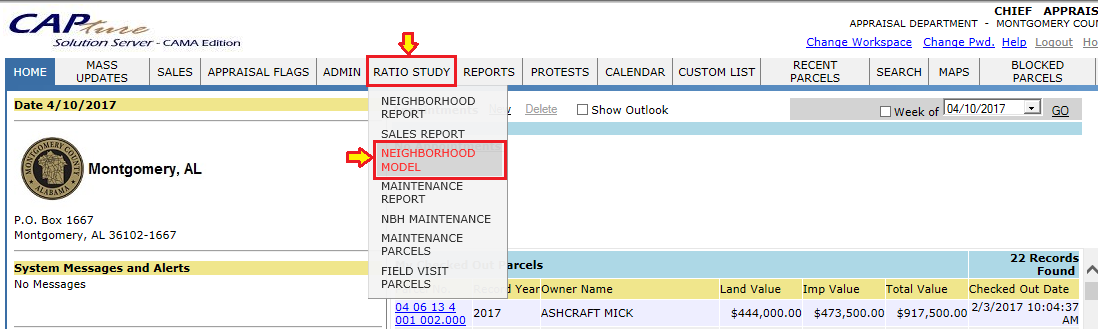
1. For creating Maintenance hover over RATIO STUDY Tab in Appraiser Work space, then click on NEIGHBORHOOD MODEL.
Adding Parcels to Maintenance:
2. Click on Dashboard Link, enter the Maintenance Tax Year then click the Go button. A list of Neighborhoods are displayed.

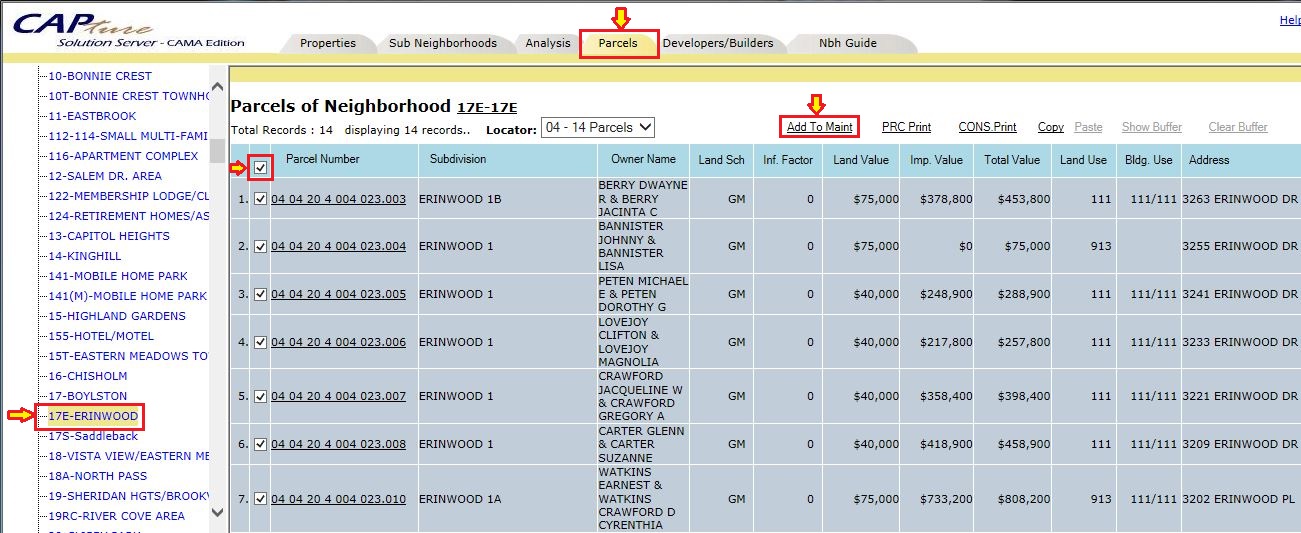
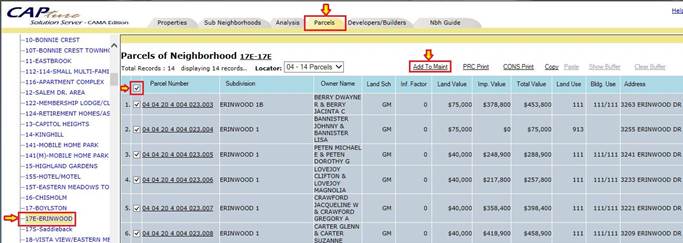
3. Select the respective NBH under Neighborhood Analyzer and click on Parcels Tab. It will display all the parcels in that NBH.
4. Select all the Parcels and click on Add to Maintenance link.
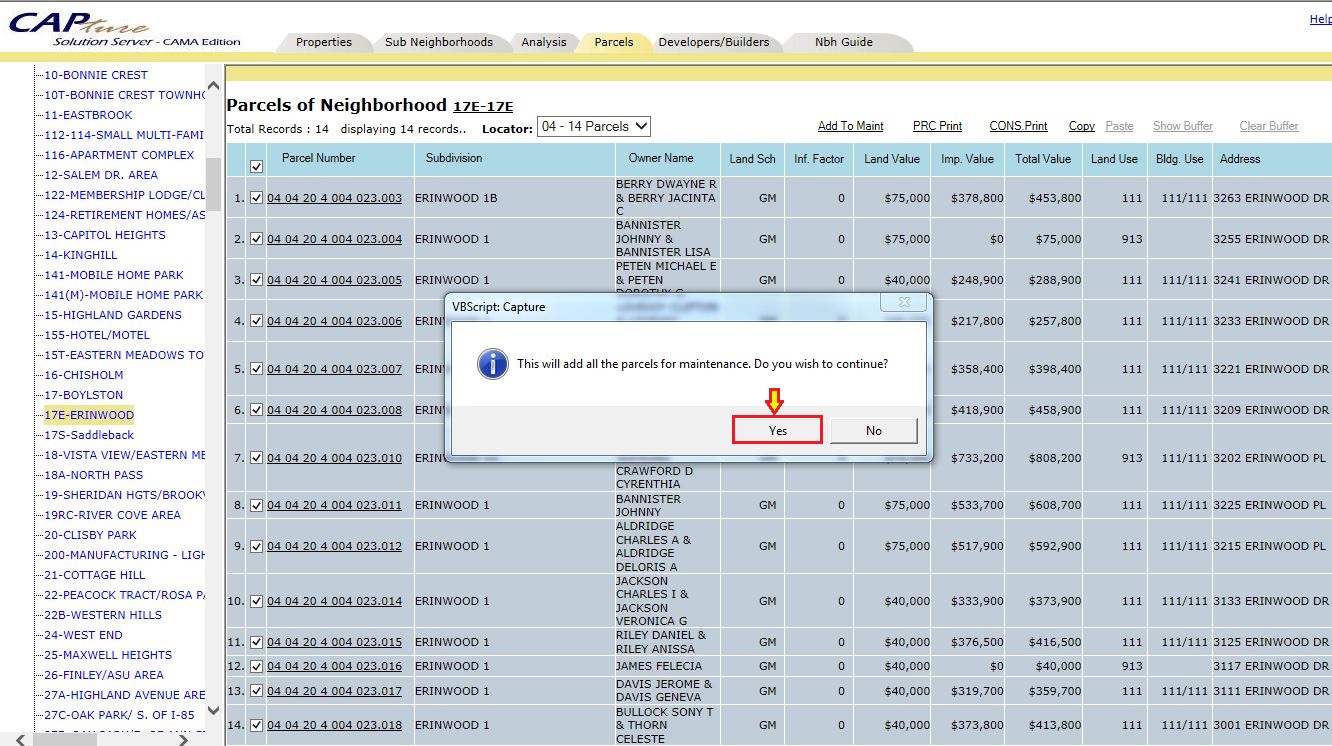
5. In this below screen shot, click ‘Yes’ will add all the parcels to Maintenance.
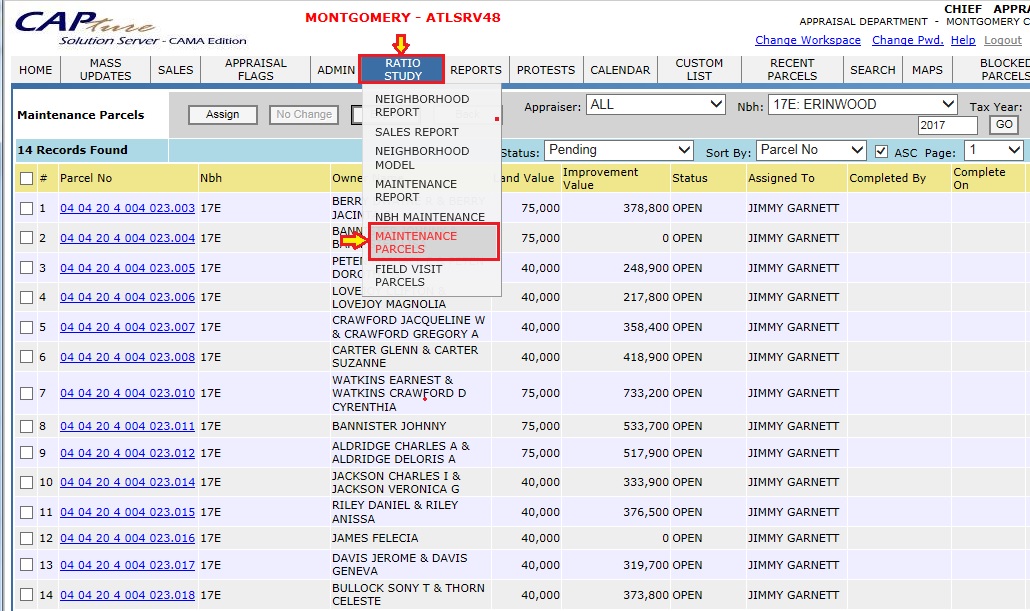
6. All the parcels added to Maintenance are assigned to the appraiser of the NBH. Hover over Ratio Study and click on ‘Maintenance Parcels’ to access the NBH Maintenance Report.
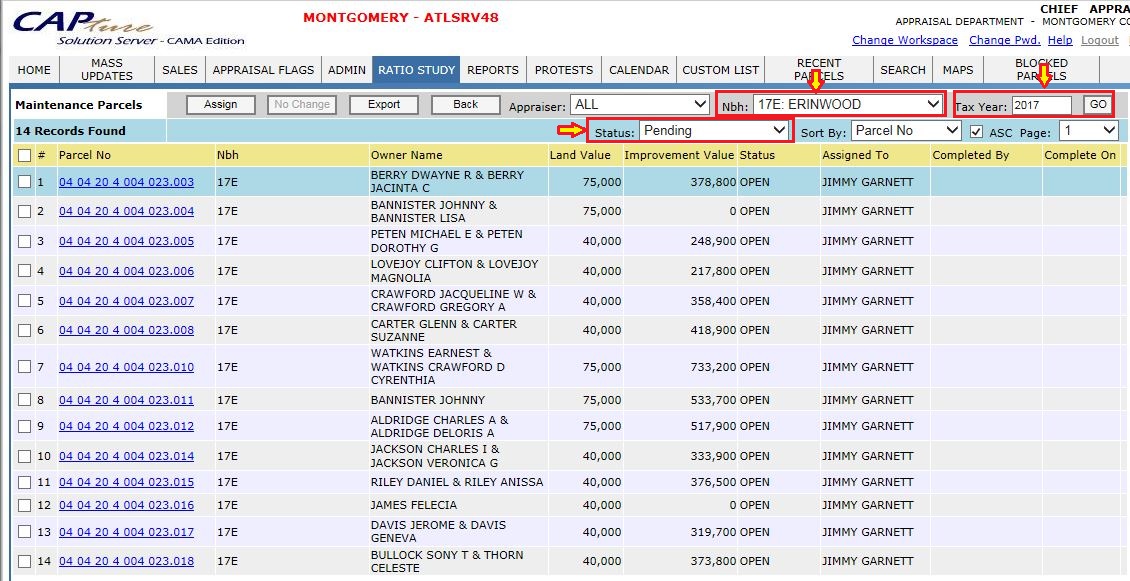
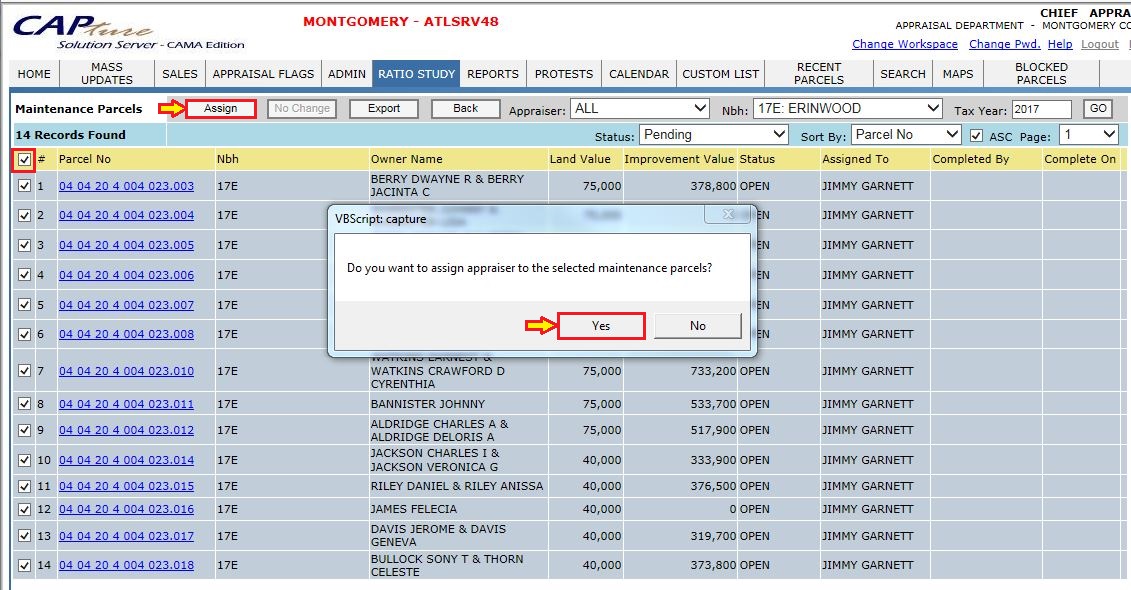
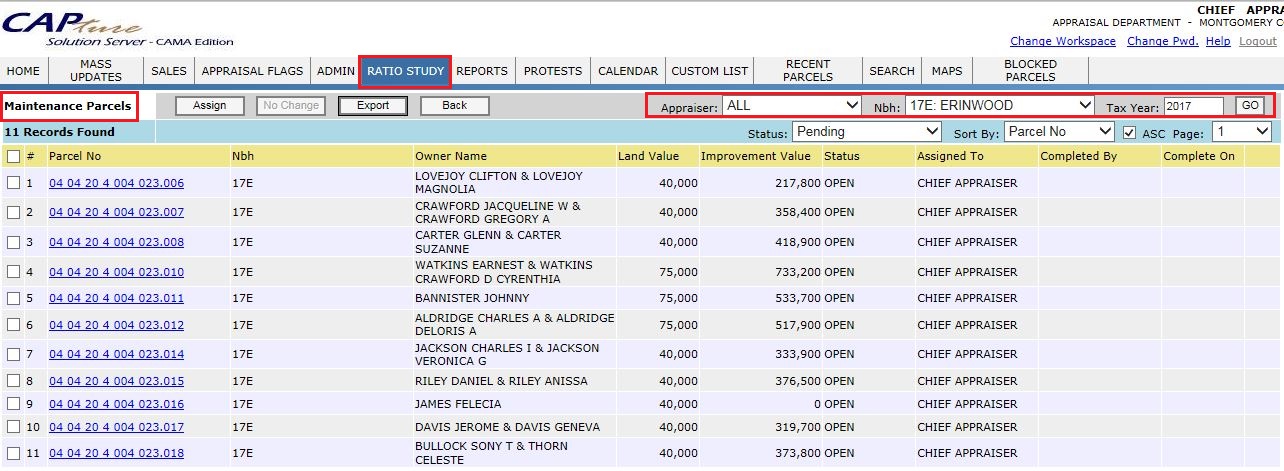
7. The Appraiser can view the parcels assigned maintenance by selecting the respective NBH and Tax Year. Once the maintenance is created the status of the parcel will be in Open.
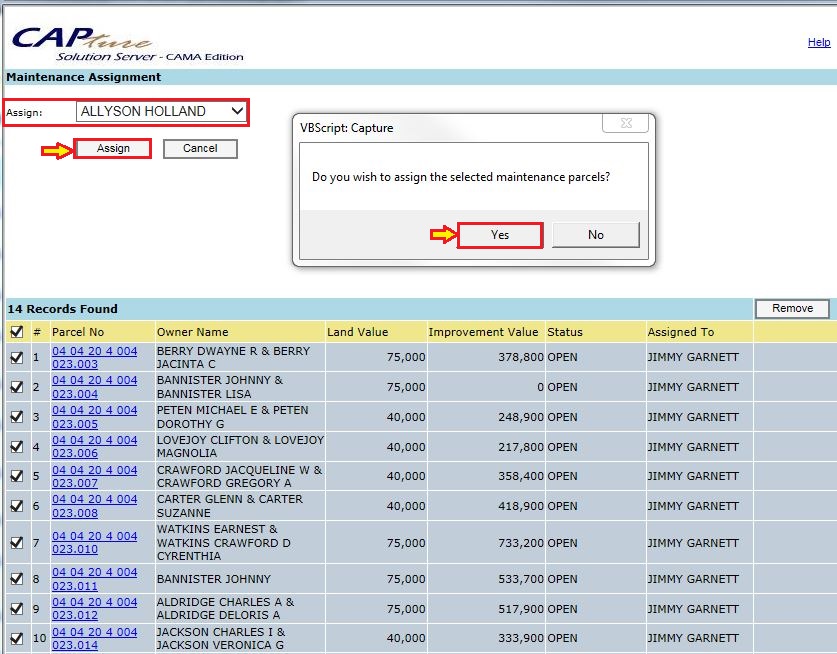
8. The Appraiser may re-assign the parcels to a different user. Click Yes to reassign the parcel(s) in below screen shot. The Maintenance Assignment window opens, select the respective user to assign and click on the “assign” button. The selected parcels are now assigned to that particular user.
9. The Maintenance Assignment window opens, select the respective user to assign and click on the “assign” button. Click on Yes will assign the selected parcels to that particular user. The selected parcels are now assigned to that particular user.
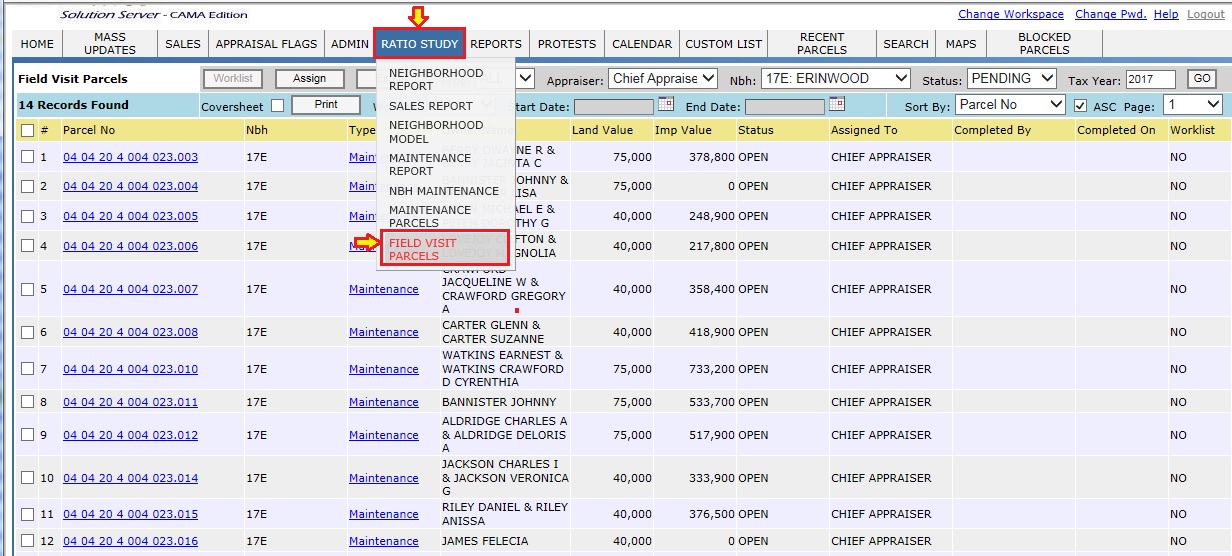
10. Login as Maintenance user (Privileged User) to process the maintenance parcels of that NBH.
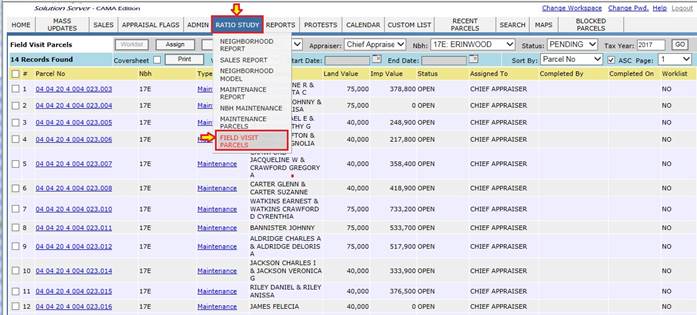
11. View Field Visit Parcels by hovering over RATIO STUDY, then clicking FIELD VISIT PARCELS. Field Visit Parcels will display the parcels which are assigned to that user.
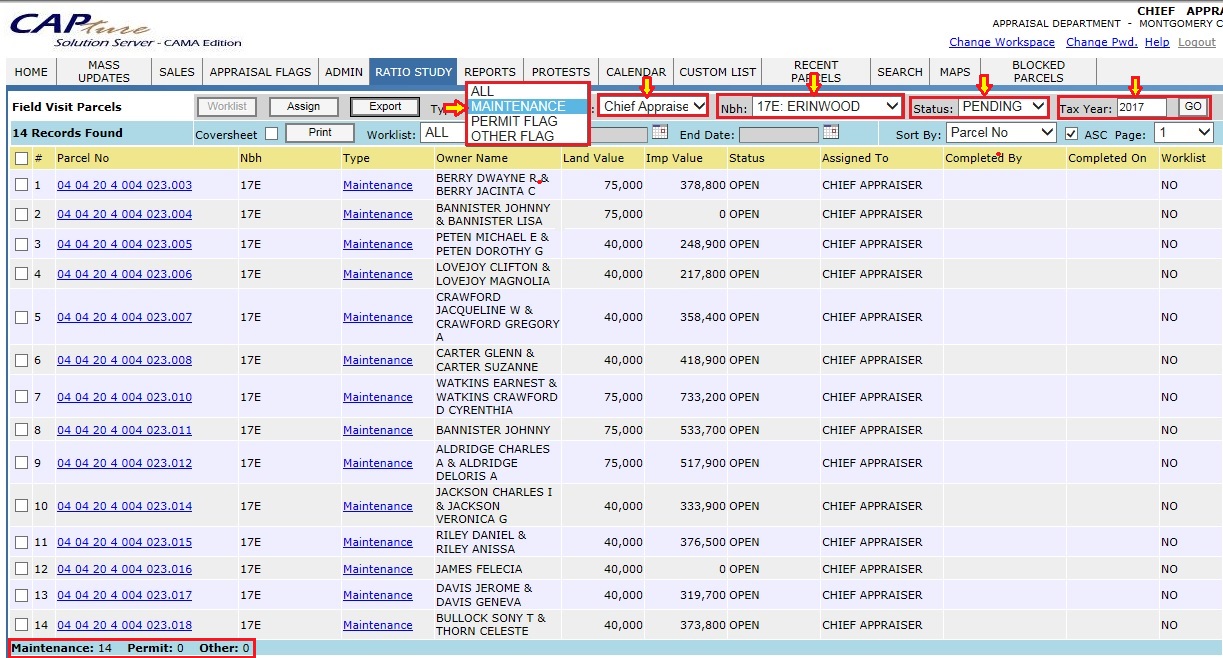
12. The Field Visits Parcels Page displays different kinds of Flags like Maintenance Flags, Permit Flags and Other Flags (Apart from Maintenance and Permits).
13. The user can find the assigned Parcels by selecting default drop downs like User, Type, NBH, Status and Tax Year.
Worklist:
-
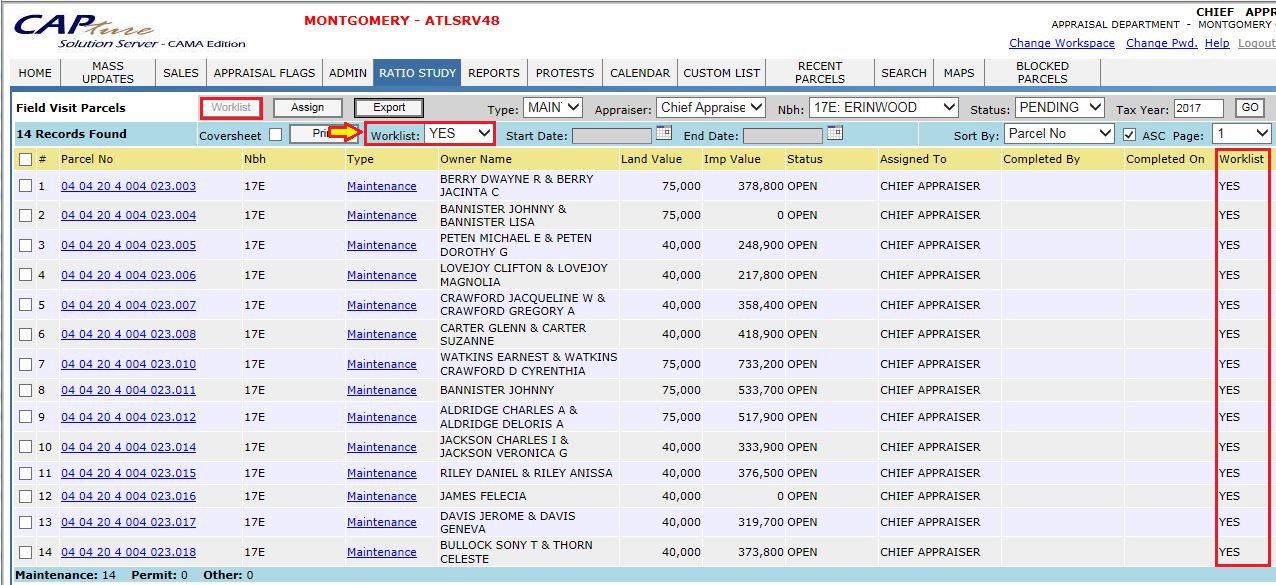
All the assigned parcels are to be added to Worklist. Worklist is a special type of custom list where, all the parcels for field visits are downloaded.
-
The worklist is available on the iPad, so parcels added to the Worklist are easily accessible.
-
Within the iPad the user will open each parcel individually and mark them as field visit completed.
-
Add Parcels to the worklist by selecting the parcels to be added, then on the Worklist button. By clicking Yes, the parcels are added to the worklist for the respective user.
-
After adding the parcels to Worklist, the worklist column status is changed to YES.
-
If there is no iPad available, the No Change can manually be completed from the Mass No Change.
-
A list may be printed here (Ratio Study -> Field Visit Parcels) if an iPad won’t be utilized.
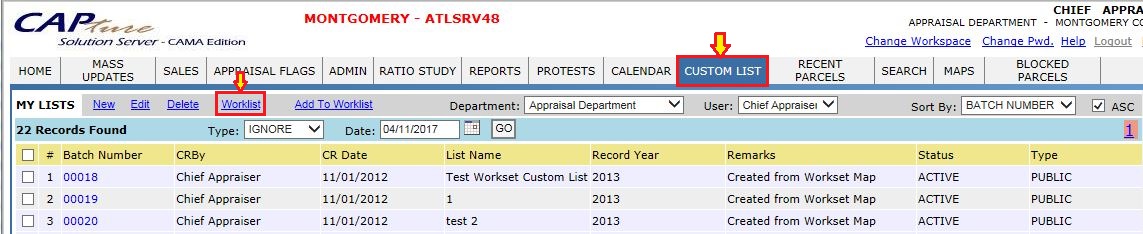
1. To check the parcels that are added in worklist, click on the CUSTOM LIST tab and click on Worklist hyperlink.
Note: Add screenshot from iPad for List of Worklist Parcels.
2. To open the Maintenance Parcel hover over ratio study -> Field Visit Parcel and open the respective parcel for which Maintenance has to be completed.
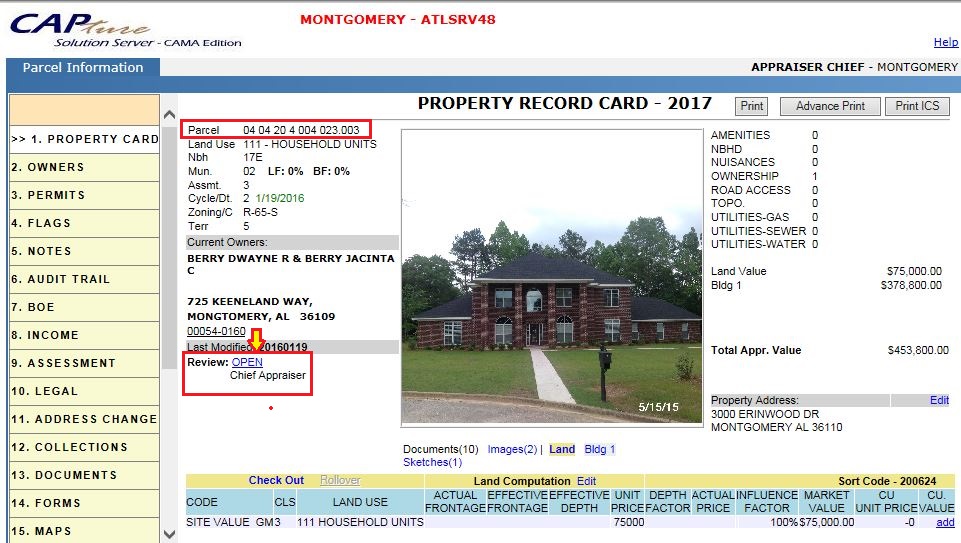
3. On the parcel PRC, click on the Review: Open hyperlink or it can be directly done under field visit parcels by opening Maintenance Hyper link.
Note: Maintenance and Permit Flags can be worked together if on the same Parcel.
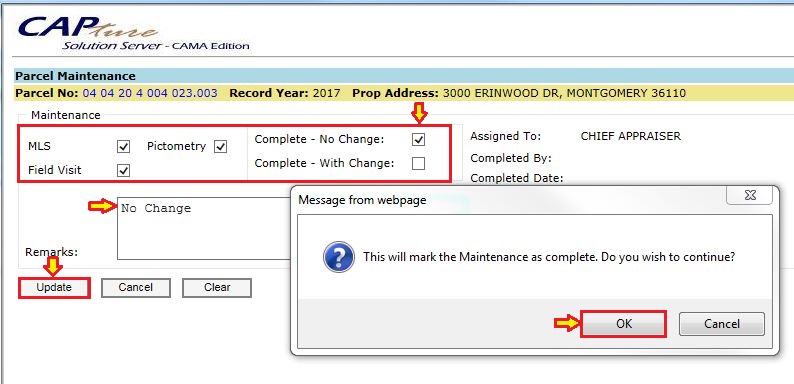
Completed with No Change: On parcel Maintenance window mark the required changes and update. This will mark the maintenance as Complete.
-
On PRC the Review status it will change to COMPLETED [NO CHANGE].
-
Verify Audit Trail for Maintenance Marked as Complete.
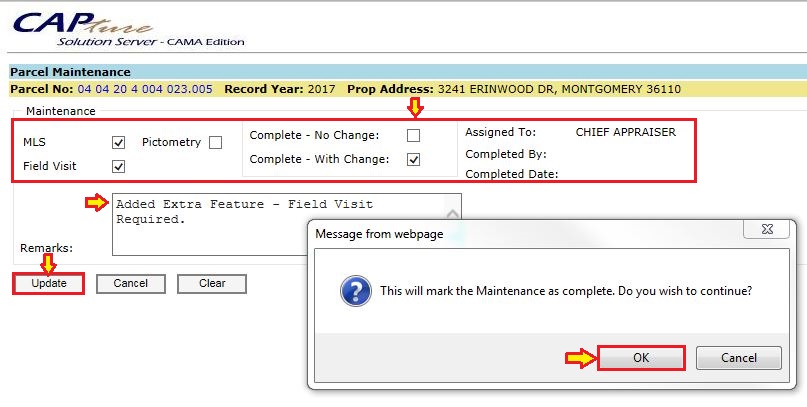
Completed with Change: For change in Maintenance add improvements like extra features and miscellaneous improvements etc., which are necessary. In Parcel Maintenance window mark as With Change and update.
-
On PRC Review will change to COMPLETE.
-
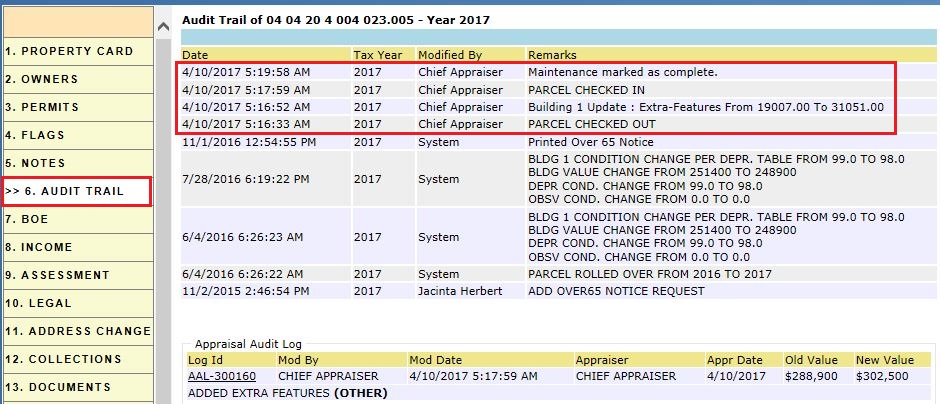
Verify the Audit trail for Updating the building with Extra Features.
Note: MLS and Pictometry are options attributes for Users.
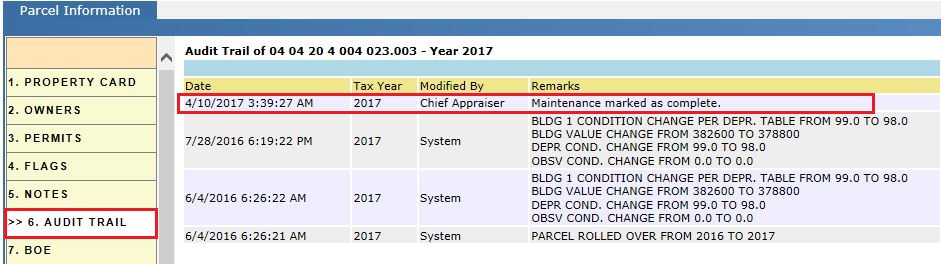
Audit Trail - Maintenance
Audit trail for Maintenance Complete - Maintenance No change.
Audit trail for Adding Improvements (Extra Features, Misc.) - Maintenance with change.
Permits:
Permits are the permissions/rights given to the taxpayer by the county to make any kind of improvements to their property, such as new construction, renovations or any other extra additions.
Permits are filed at the Permit Office by taxpayers before they make any kind of improvements to their property. The Permit Office generates files called “Permit files” which have all the information about the improvements that are being made.
Permits are automatically pulled into the Capture and assigned based on NBH and Territory.
Work Flow for Permits:
1. The Appraiser will assign the Permit flags to the privileged user.
2. Hover over Appraisal Flags and go to ‘Unassigned’. Select the Flag type as PERMIT FLAG with respective Tax Year and click on Go. This will display all unassigned flags for the permits.
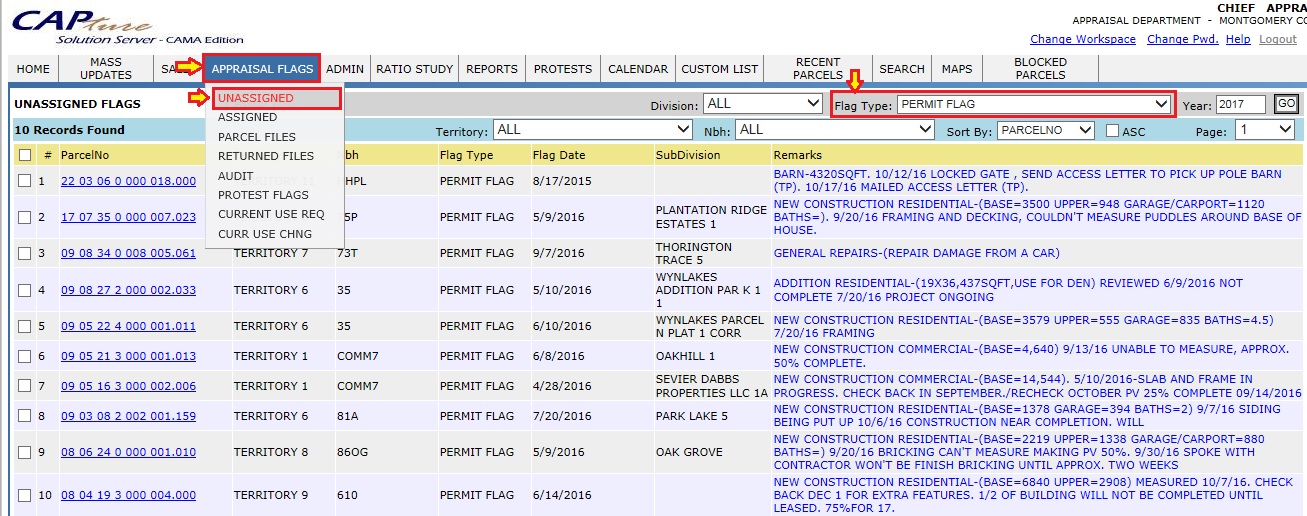
3. Select the Flags that are to be assigned to user and click on the Assign button. This will assign the selected flags to the respective user.
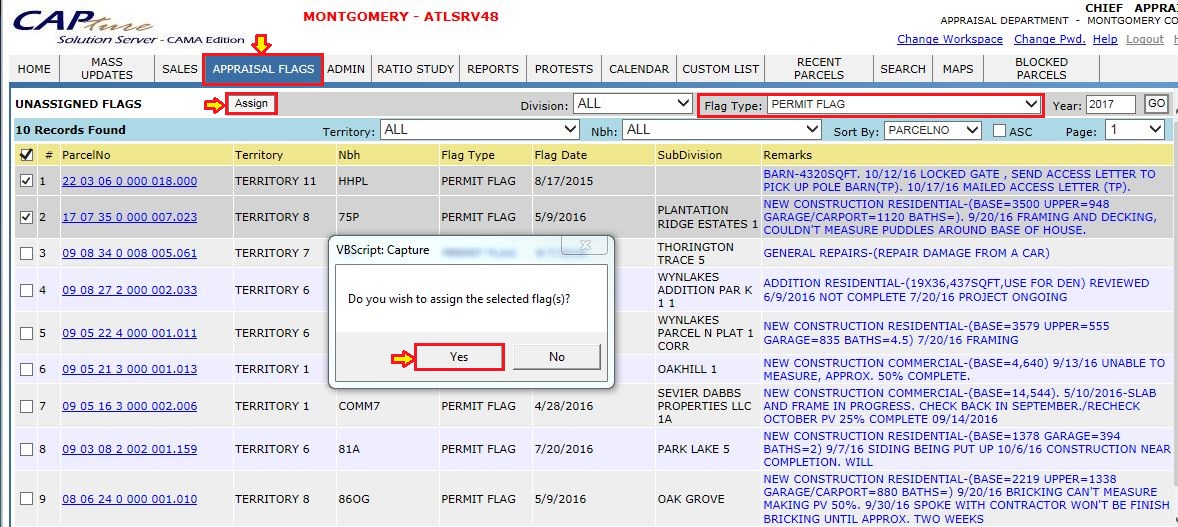
4. The end user can get all the flags here which includes (Permits/Other Flags) under Ratio study -> Field visit Parcels.

5. Within the parcel under Flags tab we can find the Permit Flags. The Permit Flag remarks indicate the modification that is to be completed on the parcel, such as Addition, New construction and other improvements.
6. Initially the permit flags will be in pending status i.e., before doing any modifications to the parcel.

7. The field visit user will visit the field and if there are any modifications user will update the information in the capture and mark the flag as complete.
Marking Flag as Complete:
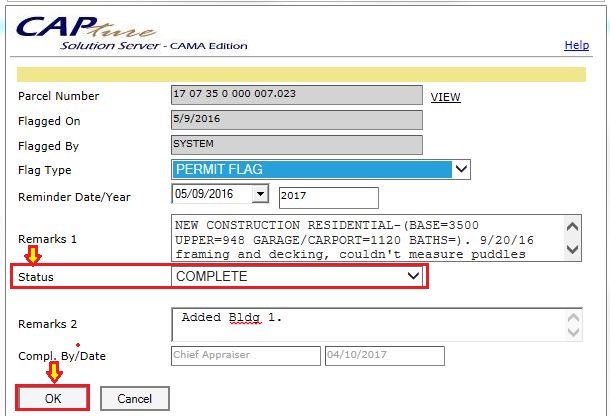
Verification:
8. Once the permit flag is marked as complete, verify the status is changed from pending to complete.

Audit trail – Permits
9. In permits additions of improvements will be audited.
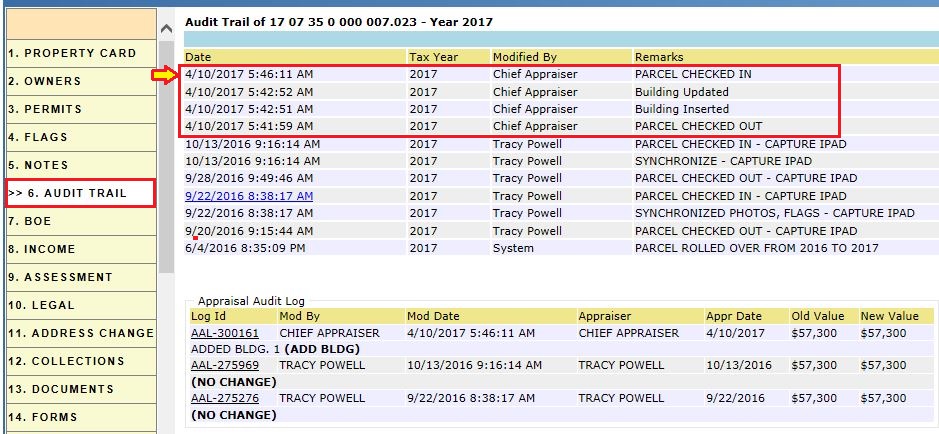
Assessment Field Check:
The flags which comes from Assessor’s office are known as Assessment Field Checks. The Assessor will update the assessment information and raise a flag for field Visit whenever a Tax Payer comes to Assessors Office and provides information about appraisal modifications or improvements.
Workflow for Assessment Field Check (Other Flags):
1. The Appraiser assigns the assessment Field Check flags to the privileged users.
2. Hover over Appraisal Flags and go to ‘Unassigned’. Select the Flag type as ASSESSMENT FIELD CHECK with respective Tax Year and click on Go. This will display all unassigned flags for Assessment field checks if available.
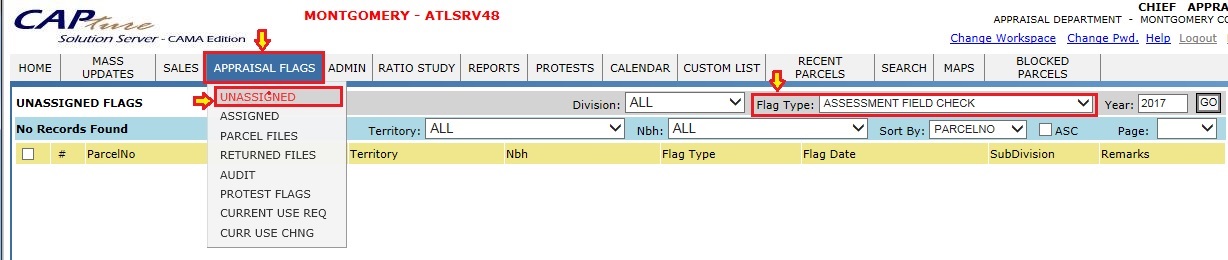
3. Select the Flags that are to be assigned to a user and click on Assign button. This will assign the selected flags to the respective user.
4. The user can access all the assessment Check flags under Ratio study -> Field visit Parcels.
5. In the parcel under Flags tab we can find the Assessment Field Check Flags.
6. Initially the Assessment Field Check flags are in pending status before doing any modifications to the parcel.
7. The field visit user will visit the field and if there are any modifications user will update the information in the Capture and mark the flag as complete.
8. Verification: Once the Assessment flag is marked as complete, verify the status is changed from pending to complete.
Reports:
Reports which are used in Field Work Process:
NBH Analyzer: This report is used by Supervisor Users to create Maintenance for that particular NBH. Under RATIO STUDY Tab -> NEIGHBORHOOD MODEL -> Dash Board.
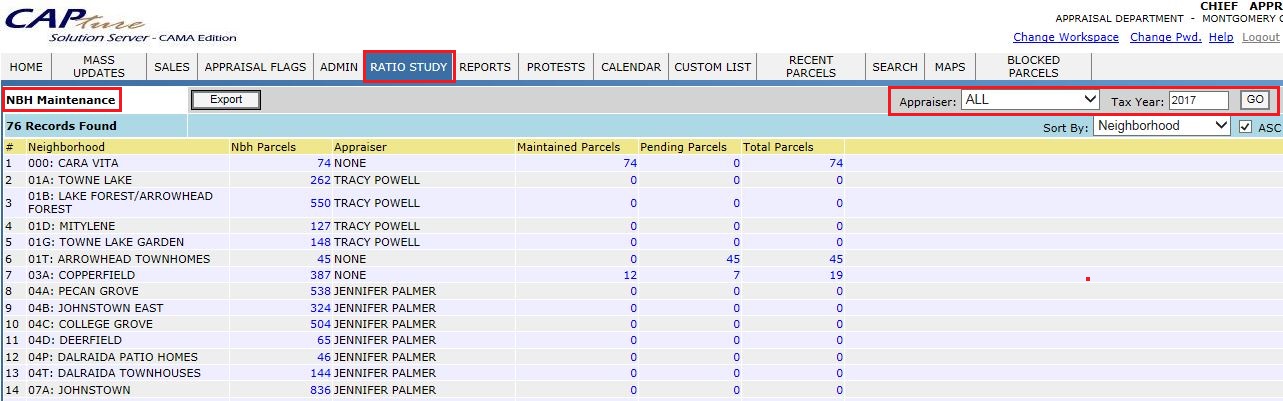
NBH Maintenance: This report shows a NBH’s maintenance for the respective User and Tax Year, aslo displays status of maintenance parcels. Under RATIO STUDY Tab -> NEIGHBORHOOD MAINTENANCE
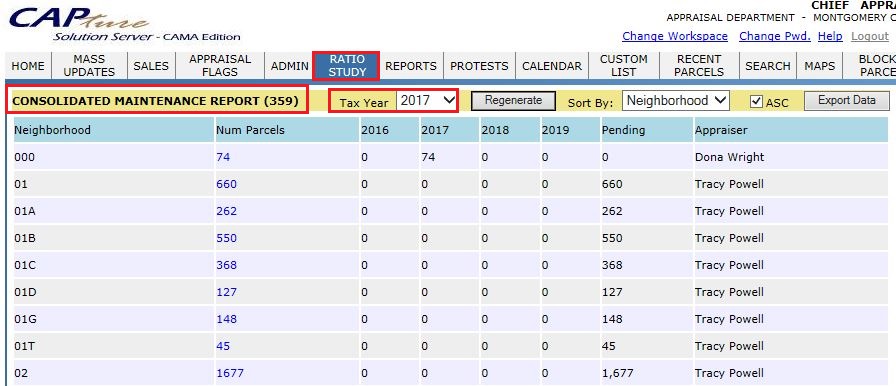
Maintenance Report: This report shows the Maintenance report with respective NBH and Tax Year. Under RATIO STUDY Tab -> MAINTENANCE REPORT.
Maintenance Parcels: This report shows the created maintenance parcels with respective User, NBH based on Tax Year. Under RATIO STUDY Tab -> MAINTENANCE PARCELS.
Field Visit Parcels: This report displays all kinds of Flags like Maintenance Flags, Permit Flags and Other Flags. Under RATIO STUDY ->FIELD VISIT PARCELS.
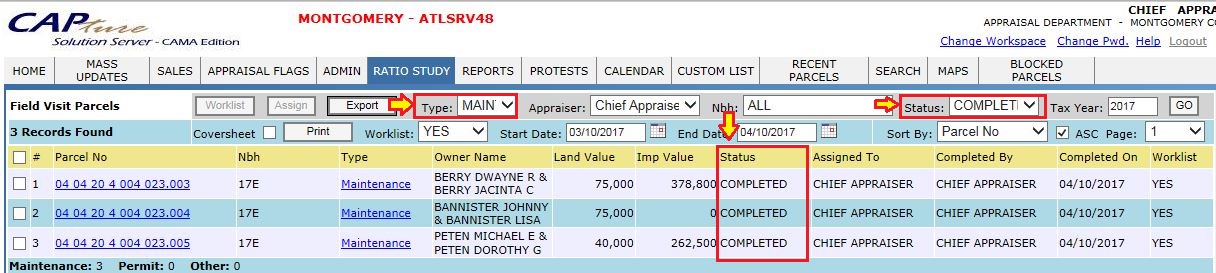
To check Maintenance completed report hover over RATIO STUDY -> FIELD VISIT PARCELS and select the respective Type-> Maintenance, User, Date, Status-> Completed and Tax Year.
Maintenance - Completed Report
To check Permits completed report, hover over RATIO STUDY -> FIELD VISIT PARCELS and select the respective Type-> Permit, User, Date, Status-> Completed and Tax Year.
Permit Flags - Complete Report

-
Same procedure to find the Assessment Field Check report by selecting Type -> Others Flags.
-
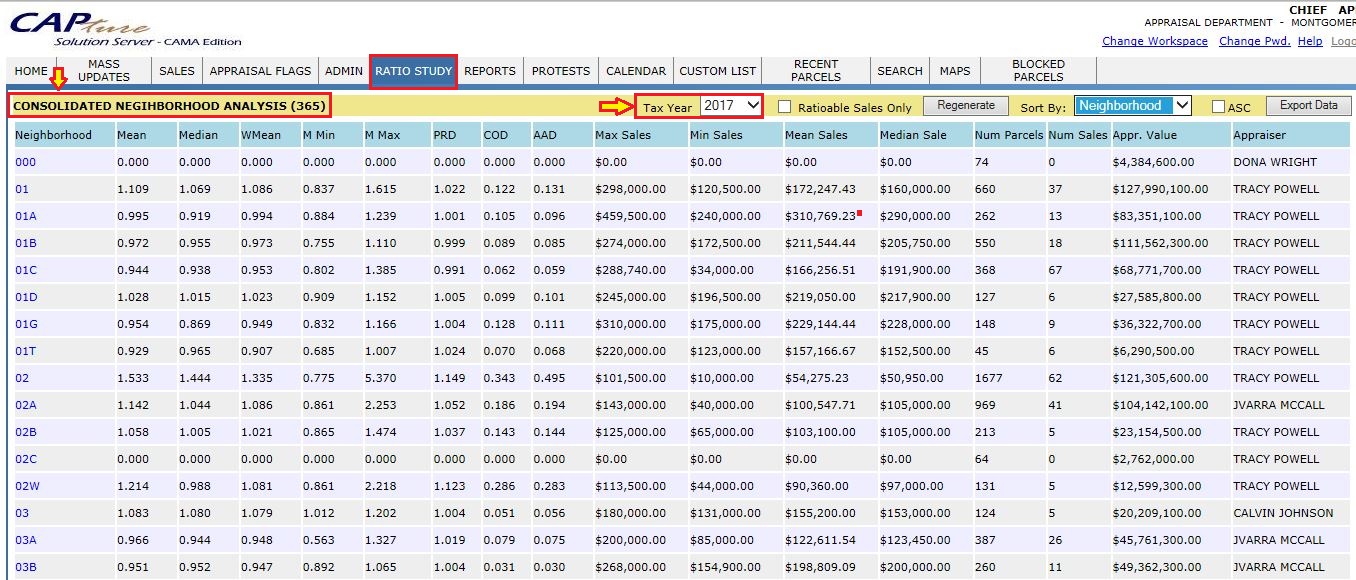
NBH Report: This report shows all the NBH Analysis with respective Tax Year. Under RATIO STUDY Tab -> NBH Report.

Confidential | Copyright © 2017 E-Ring, Inc.